





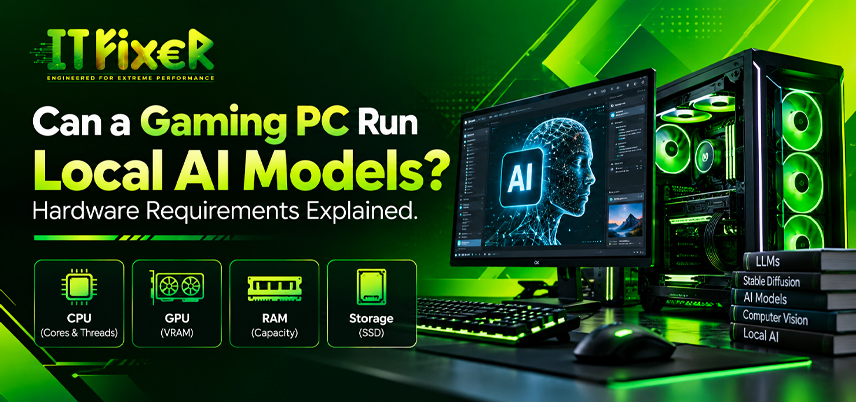
Can a Gaming PC Run Local AI Models? Hardware Requirements
A gaming PC can run many local AI models, but performance depends on the graphics card, available memory, model size and software. Games focus on rendering frames, while local large language models need enough memory to load model weights and process prompts. A desktop built for gaming may also support a private AI assistant, coding help or image generation when its hardware suits the workload.
How to choose the best GPU for AI inference for your workload
The best GPU for AI inference depends on your intended workload, model precision and available memory. VRAM capacity, compute performance and memory bandwidth all influence which models you can run and how quickly they respond.
Before upgrading, consider:
- Chat and coding models that fit within available memory.
- Stable Diffusion compatibility for image generation.
- Model benchmarks and VRAM capacity rather than gaming frame rates alone.
Compare the best GPU for AI inference by VRAM and memory bandwidth
More VRAM can accommodate larger models or longer prompts, while memory bandwidth affects data transfer during inference. The best GPU for AI inference for a small chatbot may not suit demanding image-generation or coding workloads.
Check CUDA support before choosing a GPU for AI inference
NVIDIA GeForce RTX cards support CUDA-based AI workflows across many applications. AMD GPU compatibility varies by software and backend. Verify the current documentation before buying. The best GPU for AI inference should match your budget, required memory and intended software.
Understand AI workstation requirements before upgrading your gaming PC
Your AI workstation requirements depend on the model and inference method. Many gaming PCs can run local AI applications without a separate workstation, provided their hardware supports the intended workload.
Entry-level AI workstation requirements for chat and coding
Quantized models can make local chat and coding assistance practical on mainstream desktops. The AI workstation requirements for inference are different from those for training a model from scratch, which can demand substantially more computing resources.
Professional AI workstation requirements for multiple workloads
Running text generation and image generation together increases resource demands. More demanding AI workstation requirements may justify a higher-VRAM GPU and better sustained-load cooling. Check motherboard compatibility, PCIe connectivity and power supply capacity before upgrading.
Estimate VRAM requirements for AI models before downloading
The VRAM requirements for AI models depend on parameter count, quantization, context length and runtime overhead. Model weights are only part of the total memory demand.
Practical VRAM requirements for AI models with 4-bit quantization
Four-bit quantization reduces weight memory compared with higher-precision formats. However, the VRAM requirements for AI models also include processing buffers and context usage, which vary between models and runtimes.
Estimate VRAM requirements for AI models by model size
Compare the model's memory needs with available VRAM, allowing room for processing. Eight-bit quantization generally requires more weight memory than 4-bit quantization. GGUF models support several CPU-friendly workflows, but runtime and GPU compatibility vary. Check model-specific estimates before downloading.
Check LM Studio hardware requirements for a desktop AI setup
LM Studio lets you download and run supported language models through a desktop interface. The LM Studio hardware requirements depend on the model, quantization, context length and GPU offloading. Check compatibility before downloading.
Review LM Studio hardware requirements before loading a model
Check available storage and memory before loading a model. The LM Studio hardware requirements for a small quantized assistant may be manageable, while larger models can exceed available RAM or VRAM. Close unnecessary applications if memory is limited.
Tune LM Studio hardware requirements for GPU acceleration
GPU offloading can improve token generation speed when supported by the model and backend. To meet your LM Studio hardware requirements, monitor CPU and GPU utilization during testing, then adjust GPU offloading and context settings to manage memory usage. Benchmark the model to confirm that your hardware delivers the expected local AI performance.
Check Ollama system requirements for local inference
Ollama runs supported AI models locally through a service and command-line interface. The Ollama system requirements vary by model, quantization, operating system and available memory. Test a smaller model before moving to a larger one.
Match Ollama system requirements to your selected model
Check the model variant and its memory needs before downloading. The Ollama system requirements for a compact model may suit a gaming desktop, while larger models can exceed available RAM or VRAM. CPU-based inference may work but can reduce response speed.
Plan Ollama system requirements for private, offline use
Downloaded models can support local inference without sending every prompt to a hosted AI service. However, verify the software's data-handling behavior and keep it updated. The Ollama system requirements should match your expected workload as well as your privacy needs.
Set realistic expectations for local inference performance
Local inference is less demanding than training many large models, but performance varies with model size, quantization and hardware support.
Test your setup systematically:
- Start with a small model and short prompt.
- Record loading time and token generation speed.
- Monitor temperatures and memory usage.
- Increase model size or context gradually.
Identify the bottleneck before upgrading. More VRAM helps when GPU memory is insufficient, while additional system RAM can benefit CPU-based workflows. An NVMe SSD provides storage, not a substitute for working memory. Check power and cooling before installing a higher-power GPU.
Final recommendation
A gaming PC can serve as an AI development PC when its hardware suits the selected model and software. Start with a quantized model, confirm compatibility and benchmark your actual tasks. Balance VRAM, compute capability, cooling and budget instead of automatically choosing the most expensive GPU.
Can a gaming PC run local AI models? Learn about GPU, VRAM, RAM and storage requirements for running LLMs, Ollama and LM Studio in 2026.

IT FIXER
Need Any Help
Call Us 24/7 Full Support
Leave a comments
Your email address will not be published. Required fields are marked *